That horizontal stripe cutting across your canvas print isn't just an eyesore. It's a symptom. Every banding problem has a specific, fixable cause.
Chasing down a print head clogged nozzle on your wide-format inkjet? Or trying to figure out why a gradient sky turned into a staircase of visible bands? The diagnosis process works the same way. Narrow it down fast, fix the right thing, and stop burning materials on test prints that tell you nothing.
Look at just four things about your banding: its direction, color, location, and spacing. Those four details point you straight to the root cause — often in under three minutes. From there, every fix is clear and direct.
The 3-Minute Banding Diagnosis Matrix for Wall Prints (Direction, Color, Location, Spacing)
Four observations. That's all this takes.
Stop before you run another cleaning cycle or reprint a test strip. Train your eye on four dimensions of the banding you're seeing. Direction. Color. Location. Spacing. Each one cuts out a whole category of causes. Together, they get you to the root problem faster than any guesswork.
Dimension 1: Direction — Your Fastest Filter
Start here. Direction alone cuts your suspect list in half within 30 seconds.
Horizontal bands (stripes running across the print width) → points to the carriage travel axis: print head clogged nozzles, bidirectional printing artifacts, or pass/interlacing misconfiguration.
Vertical bands (bars running top to bottom) → points to the media feed axis: roller drag, feed advance calibration error, or an incorrect media profile.
Diagonal bands → points to media skew on load, encoder strip contamination, or carriage belt tension asymmetry.
Don't skip this step. Getting the direction wrong sends every fix down the wrong path.
Dimension 2: Color — Single-Ink or System-Wide?
A band that shows up in one color only (say, a cyan stripe in an otherwise clean sky) signals a single nozzle row or a channel-specific ink flow issue. A band that appears across all colors at the same level — visible even in neutral grays — points to a mechanical problem: feed calibration, roller contact, or printhead alignment drift.
Dimension 3: Location — Global vs. Localized
Bands spread across the full wall print → systemic issue: a calibration offset, wrong media profile, or a print resolution DPI mismatch that builds up the color banding gradient problem throughout the print.
Bands stuck to one zone → localized cause: a specific nozzle row with clogging, a single roller segment leaving ink cartridge streaking marks, or contamination at a fixed carriage position.
Dimension 4: Spacing — Fixed or Variable?
This dimension separates hardware problems from software and settings problems.
Spacing stays the same no matter what print mode you use → the interval has a physical source: roller pitch, nozzle row distance, or encoder frequency. It won't go away until you fix the hardware.
Spacing shifts after you change pass count or print resolution DPI → the problem sits in your interlacing or bidirectional printing settings. Try going from 4-pass to 8-pass, or switch from bidirectional to unidirectional printing. That often clears it up.
The 60-Second Prioritization Rule
Ask these three questions before anything else:
What direction? Horizontal → carriage/nozzles. Vertical → feed/advance. Diagonal → skew/encoder.
Global or localized? Global → calibration or profile. Localized → physical defect at a specific point.
Does band spacing change with print mode? Yes → settings/interlacing issue. No → hardware-rooted cause.
Answer all three, and you've cut out at least 60% of possible causes. The rest of this guide maps to each branch — so wherever the matrix points you, the next step is ready and waiting.
Hardware Mechanical Banding: Clogged Nozzles, Alignment, and Feed Errors

Three mechanical failures cause most hardware banding in wall prints. Clogged nozzles. Misaligned printheads. Feed calibration errors. Each one leaves a distinct visual signature. Know the signature, and the fix becomes clear.
Clogged Nozzles: The White Line Problem
Run a nozzle check before anything else. This is non-negotiable.
Narrow white or light horizontal lines cutting through solid fills — common in sky gradients or large color blocks — point to a clogged print head nozzle. The nozzle check confirms it. Look for missing segments, gaps, or broken lines in any color channel.
A few things worth knowing about thresholds:
Any missing segment in the banded color channel puts you at risk. Even a 2–3% gap in nozzle coverage shows up in smooth gradients and light tints.
On Ricoh DTG systems, visible banding kicks in at more than 2–3 adjacent nozzles missing or misfiring in a single channel — even if the rest of the pattern looks fine.
Faint lines that aren't fully absent point to ink starvation, not a true clog. Check ink levels, damper condition, and room temperature before running a cleaning cycle.
The cleaning cycle rule: Run no more than 3 consecutive auto-clean cycles. No improvement after the third? Stop. More auto-cleans waste ink and wear out the pump. Move to a manual soak or head flush instead — most printer manufacturers cover the exact steps in their service guides.
Also check your environment. Ricoh recommends ≥45% RH for DTG machines. UV and DTF systems target 40–60% RH at 20–25°C. Dry air speeds up ink drying inside the nozzle plate. A preventable maintenance issue turns into a stubborn clog fast.
Feed Calibration Errors: Nozzle Check Passes, Banding Stays
This scenario trips people up. The nozzle check looks clean. You've aligned the head. The print still shows repeating light and dark bands across the full media width at regular intervals — sometimes every 2–10 mm, depending on resolution and step settings.
That's a media feed (step) calibration error. Cleaning cycles won't fix it.
Here's what happens: the printer advances the media in steps that are too large or too small. Each pass either overlaps the previous one (dark bands) or leaves a tiny gap (light bands). Those errors add up across a large-format wall print. The result is clear banding in smooth gradients and solid fills.
How to fix a feed calibration error:
Print the step test pattern from your controller software. DTF/BYHX controllers show this as an integer offset grid.
Find the row where vertical lines are continuous and straight — no overlap, no gap.
Enter the matching offset value (e.g., +1, –1, –12) into the controller.
Press Calculate to generate the corrected gear ratio. Then press Save to write it to firmware.
Reprint the test. The center "0" row should read as straight with no gaps or overlap.
Before running calibration, clean the pinch rollers and drive rollers with a lint-free cloth. Dried ink or film on roller surfaces causes intermittent slip. That slip shows up as irregular band spacing with no fixed mechanical pattern. It's easy to miss — and easy to overlook.
Banding changes character after a media swap? You also need to adjust platen gap or vacuum pressure settings. Then re-run feed calibration for the new media.
Bidirectional Misalignment: The Ghost Band
Blurry edges. Text with a faint shadow offset by a fraction of a millimeter. Alternating thick-and-thin lines that look almost deliberate but aren't. These are the signs of bidirectional printing artifacts. The printhead fires on both left-to-right and right-to-left passes, but the timing is off between the two directions.
The fastest diagnostic: switch to unidirectional printing in your driver settings. Ghosting and banding clear up in unidirectional mode? You've confirmed the cause. It's a bidirectional alignment issue, not a clog.
Fixing bidirectional misalignment:
Print the bidirectional alignment pattern from your printer utility.
Select the column where the merged lines look sharpest. Repeat 1–2 times for fine-tuning.
Breathing Color recommends head alignment every 6–12 months under normal use. Do it more often after the printer has been moved, a head has been replaced, or you're running heavy bidirectional workloads.
Ghosting persists after alignment correction? Inspect the carriage belt tension and linear rail. Mechanical backlash — any looseness greater than 0.1 mm at nozzle distance — produces visible ghosting at 600–1440 dpi. A belt that feels loose at carriage reversal points needs a hardware fix. No software alignment routine can compensate for physical play.
The Correct Sequence When Hardware Banding Appears
Order matters here. Running alignment before fixing clogs wastes your time. You can't align a head that isn't printing clean.
Run nozzle check first. Anything missing? Fix the clogs before touching alignment settings.
Clean cap-top edges and wiper blade. Dried ink on sealing surfaces breaks cleaning cycles and keeps the problem going.
Once nozzle check hits ≥99–100%, run bidirectional alignment, then vertical/step alignment — in that order.
Run feed calibration last, after the head is confirmed clean and aligned.
Verify environment: temperature 20–25°C, humidity 40–60% (45% minimum for DTG). These aren't optional targets. They affect ink viscosity, nozzle drying rate, and media flatness — all of which feed directly back into banding.
Driver Configuration and Print Pass Overlap Artifacts
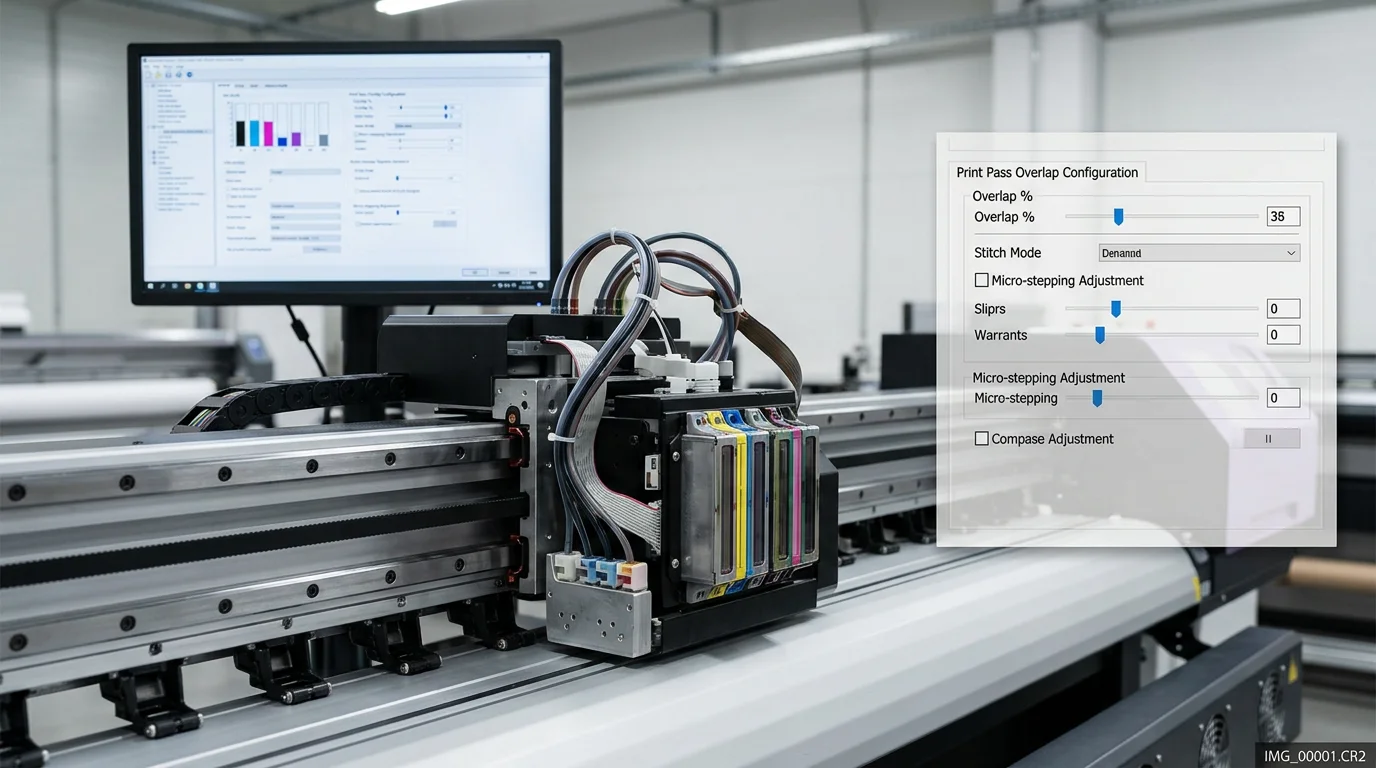
Most banding problems get blamed on clogged nozzles. A surprising number of them live inside your driver settings — in how your printer manages the overlap between print passes and between adjacent printheads. The fix isn't a cleaning cycle. It's a configuration change.
Here's the pattern to recognize: fine parallel lines appear across a solid-color fill. They're spaced at equal intervals. They get worse in a faster print mode. They don't respond to nozzle cleaning at all. That's a pass overlap artifact. Your driver is generating it.
How Pass Overlap Creates Banding
Every wide-format printer breaks a wall print into swaths — horizontal strips laid down pass by pass. Where one pass ends and the next begins, there's a boundary. Too low an overlap percentage, and that boundary shows. Each pass carries a slightly different ink density or hue shift at its edge. Without enough overlap to average those differences out, you get a repeating horizontal band. It repeats at the swath height.
The numbers matter here:
25–50% pass overlap handles moderate quality output
Up to 75% overlap is the target for high-quality interlaced wall print modes
Below 25% and pass edges become visible — in smooth gradients and large color blocks
Banding that shrinks or disappears after moving from a 2-pass to a 4-pass mode confirms the issue. The problem is insufficient overlap, not hardware failure.
Over-correction creates its own issue. Push overlap above 50–70% without adjusting drop volume per pass. You'll start seeing dark bands in the overlap zones — over-inking that shows up as density spikes with visible gloss differences in some media.
Head-to-Head Stitch Lines on Multi-Head Systems
Industrial and wide-format printers with multiple printhead arrays add a second overlap problem: the stitch line between adjacent heads. This is where active nozzle configuration becomes critical. It's also where most operators make their first mistake.
Each printhead has a defined range of active nozzles at its start and end points. The overlap region between two adjacent heads needs one nozzle line printing each pixel — not two, not zero.
Over-activation in the overlap region → double ink deposit → a darker line running the full media height at the stitch position
Under-activation → gap in coverage → a thin white line at the same position
The fix is straightforward:
Print a stitch test pattern — alternating bars from each adjacent head
Adjust the head offset value (in µm or pixels in your RIP) until bars appear continuous with no step
Tune the overlap nozzle window — 32–64 nozzles is the standard range — until the artifact band collapses
Reprint a solid patch across the stitch zone to confirm clean coverage
On EFI-based systems, this configuration lives in the Start active injectors and End active injectors fields for each head. These values haven't been reviewed since your last head replacement or RIP update? Check them now.
Speed-Dependent Banding: The Timing Problem
Banding that shows up in High-Speed or Draft mode, then clears at Standard quality, points to a bi-directional timing calibration issue tied to that speed mode — not a general alignment problem.
At higher carriage speeds, the driver uses different firing delay tables to keep dots landing in the correct horizontal position. Timing errors as small as tens of nanoseconds shift dot placement between left-to-right and right-to-left passes. The result is alternating lighter and darker bands tied to pass direction — classic bidirectional printing artifacts that look like speed-induced striping.
Two tests narrow this down fast:
Switch from bi-directional to unidirectional printing in that speed mode. Banding clears up? The root cause is bi-di timing, not media or ink.
Keep the same resolution but increase pass count — move from 2-pass to 4-pass at high speed. Bands collapse? You've confirmed the problem is overlap reduction at high speed, not timing alone.
High-speed modes often cut pass count to hit throughput targets. So the overlap calibration done at standard speed may not carry over. Re-run bi-di alignment in the high-speed mode after any configuration change.
Carriage-Direction Streaks: Nozzle Mask Conflicts in Overlap Zones
A streak running parallel to carriage travel — in the direction of media movement — at a fixed horizontal position traces back to a nozzle mask conflict inside the overlap region.
The driver's nozzle compensation logic deactivates a nozzle column on both overlapping heads at the same x-position. Neither head covers that column. The result is a continuous light streak running the full height of the wall print, aligned with carriage travel.
Driver-level fixes for carriage-direction streaks:
Print a nozzle status check and confirm that any missing or weak rows match the streak positions
Rebuild the nozzle mask and compensation map — force the driver to recalculate which nozzles are active per head
Test with nozzle compensation disabled for a short run: streak disappears? The compensation mask needs refinement, not more aggressive substitution
Verify that active injector ranges for overlapping heads don't both exclude the same nozzle column at any x-position
Quick Reference: Three Symptoms, Three Driver Fixes
Symptom | Driver Root Cause | Primary Fix |
|---|---|---|
Fine parallel lines across solid fills | Pass overlap too low / stitch mis-configured | Increase pass overlap to 50–75%; re-run stitch alignment |
Banding worsens at high speed | Bi-di timing mis-calibrated at that speed; fewer passes | Re-run bi-di alignment in high-speed mode; increase pass count |
Streaks parallel to carriage travel | Nozzle mask conflict in overlap zone | Rebuild nozzle compensation mask; verify active injector ranges |
These three settings — overlap percentage, active nozzle ranges per head, and mode-specific firing delay tables — are the driver-level controls that generate or eliminate print pass overlap artifacts. Hardware cleaning won't touch them. Mechanical alignment won't fix them. Each one needs its own configuration and verification with a test print at the same speed mode you use for production wall prints.
File-Side Gradient Posterization and Low Print Resolution DPI
Some banding problems have nothing to do with your printer. The issue gets baked into the file before a single drop of ink touches the canvas. Nozzle cleaning and feed calibration won't fix it.
Here's the clearest proof: print the same file on two different printers, different substrates, different shops. The bands land in the same positions, at the same spacing. That's your file. The printer is just delivering the message.
How to Tell File-Side Banding from Hardware Banding
Two quick checks:
Do the bands align with the image pixel grid? Zoom into the file at 100% on screen. See the same tonal steps on screen as on your print? The quantization happened upstream — in your gradient math, your bit depth, or your compression chain.
Does the banding survive a cross-printer test? Same pattern on a photo inkjet and a laser press? The output device isn't the problem. The source file is.
Either of those checks fails? Stop adjusting printer settings. Fix the file.
The Four File-Side Causes
1. Low Print Resolution DPI
This one is simple but gets misread all the time. The number that matters isn't your printer's output DPI. It's your file's effective PPI at final print size.
Close-view wall art (canvas prints, fine art prints): 300 PPI at final size, minimum
Small-room posters: 200–250 PPI keeps gradients smooth at normal viewing distances
Large-format signage viewed from several meters: 150–200 PPI works fine
The trouble starts when a low-resolution original gets upsampled to hit a target PPI. Take a 1200×1800px file to a 10×15" print at 300 DPI — you don't get 300 PPI quality. You get upscaled 120 PPI quality with sharpening halos around every tonal band. Source files below 150 PPI at intended print size show visible posterization in skies and smooth backgrounds. Reduce the print size or start from a higher-resolution original.
2. Low Bit Depth
An 8-bit gradient holds 256 discrete tonal steps per channel. Across a large sky on a wall print, those steps show up — especially in pastel tones and vignettes. The fix: work in 16-bit/channel through your entire editing process. Convert down only at the final export stage.
Spot banding in a gradient at 100% zoom inside a 16-bit working file? That gradient is already quantized. Rebuilding it at 8-bit won't solve anything. Rebuild the gradient itself.
3. JPEG Compression Artifacts
JPEG quantization adds discrete blocking steps that look like posterization bands in flat gradients. Each lossy resave makes it worse. A file opened, adjusted, and saved as JPEG three times arrives at the printer carrying three layers of quantization errors.
Use PNG or TIFF for any file with gradient-heavy content. Don't use JPEG as a working or interchange format for wall prints. That rule applies to print lab handoffs too. Their upload portal defaults to JPEG? Ask if they accept TIFF.
4. CMYK Halftone Threshold Positions
In CMYK files, three plate coverage values cause visible stepping: 0%, 50%, and 100%. At these points, the halftone dot structure shifts hard — from no dots to small dots, from positive to reversed dots, from small reversed dots to flat solid. A gradient stop that lands on one of these values produces a visible band at that spot.
The fix: keep all gradient endpoints and stops in the 2–98% range on every plate. Don't let multiple plates cross their 50% thresholds at the same gradient position. Stagger those crossings so they don't stack into one visible line.
Pre-Press Fixes in Photoshop
Two actions make the biggest difference before sending a wall print file to output:
Add 1–2% monochromatic noise to gradient regions. Go to Filter → Noise → Add Noise. Set it to 1–2%, Gaussian, Monochromatic. That small amount of micro-variation breaks up tonal banding without hurting perceived image quality. Run it as a final step, after color grading, on any layer with a smooth sky, vignette, or background gradient.
Set gradient rasterization in PDF export to ≥300 DPI. Exporting from Illustrator or InDesign? The transparency flattener and gradient rasterization settings control how vector gradients convert for the RIP. Default presets often sit at 150 DPI — that produces visible fountain steps across large-field gradients on any printer running that PDF. Set it to 300 DPI minimum. Use 450–600 DPI for critical fine art output.
File-Side Banding: Quick-Fix Checklist
Check | Target | Action if failing |
|---|---|---|
Effective PPI at print size | ≥300 PPI (close view) | Reduce print size or rebuild from higher-res source |
Bit depth | 16-bit/channel | Re-edit in 16-bit; add noise to existing 8-bit gradients |
File format lineage | PNG or TIFF | Recreate gradient from original; eliminate JPEG resaves |
CMYK gradient stops | 2–98% on all plates | Adjust endpoints; stagger multi-plate threshold crossings |
PDF gradient rasterization | ≥300 DPI | Update flattener/rasterization settings in export preset |
Noise layer on smooth gradients | 1–2% monochromatic | Add as final step before export |
Media Coating Variability and Post-Print Finishing Lines
The print looked fine before you touched it. Then you applied varnish, laminate, or a clear coat — and the banding appeared from nowhere.
This isn't a printer problem. It never was. The defect was already there, sitting just below what the eye could catch. The finishing layer exposed it.
Liquid finishes act like a magnifying glass on surface flaws. Uneven coating absorbency, patchy porosity in the media, residual dust or skin oils — all of it stays hidden at normal viewing angles. Then a glossy topcoat locks light into those tiny surface variations. Every inconsistency becomes visible. Canvas stretching does the same thing through a different path. Tension pulls pre-existing unevenness across the substrate and drags latent banding into plain sight.
Read the Symptom Before You Reach for the Spray Can
Where the banding shows up tells you what caused it:
Banding visible before any coating → the substrate itself has print-line or ink-density variation
Banding appears after primer only → heavy primer application, pooling, or poor surface prep
Banding appears after clear coat or varnish only → gloss is picking up residual surface texture or patchy absorbency
Banding intensifies after canvas stretching → tension is pulling hidden unevenness to the surface
The Finishing-Line Controls That Matter
Apply two thin primer coats — not one heavy one. A heavy spray pass causes pooling. That pooling dries into uneven thickness, which shows up as visible ridges. Use short, quick strokes at a controlled distance. Let each coat cure before the next.
Sand in small circular motions. Sanding in straight lines along existing marks carves grooves into the surface. Start at 100–200 grit to remove visible stepping. Finish at 600 grit before any topcoat goes on.
Clean before you coat. Oils, sweat, and dust all block uniform coating flow. Wash the surface, dry it fully, and handle with gloves.
Keep every topcoat layer thin. Multiple light coats beat fewer heavy ones every time. For repairs, use a self-leveling fill coat — around 1/64" thickness — then sand back after cure with 300–600 grit.
5 Quality Indicators to Vet Online Wall Art Print Providers
Ordering wall art online is a trust exercise — and most providers don't earn it. Five things tell you whether a lab is worth your money before you upload a single file. Get these wrong, and you're gambling on a banded print arriving in a tube.
1. Resolution Requirements and File Handling Transparency
A reputable lab states its DPI requirements and enforces them. Look for 300 PPI at final print size as the minimum for photography and detailed artwork. Some labs accept 240 PPI for very large pieces — 24×36" and beyond — but they attach an explicit viewing-distance caveat.
Two questions reveal how a lab really handles files:
Do they warn you before printing if your file is under-resolution — or do they upsample it and ship without telling you?
Does their RIP pipeline process gradients at 16-bit depth? Lower-end pipelines cause most gradient banding in sky areas and smooth backgrounds. That's not your printer or your nozzles — it's the lab's pipeline.
Got horizontal banding in a gradient? Don't blame the lab yet. Zoom your original file to 100–200% on a calibrated screen first. Stepping visible there? The problem came from your file.
2. Printer Type, Ink System, and Pass Mode Disclosure
Good providers name their hardware. 12-color aqueous pigment inkjet systems — Canon imagePROGRAF, Epson SureColor P-series — are the standard for fine art paper and canvas. Eco-solvent or latex systems cover posters and display canvas. A provider that won't name their printer or ink system? That silence is your answer.
Check for two disclosures:
Pigment inks with documented archival life. The benchmark from major manufacturers — Epson Ultrachrome, Canon Lucia, HP Vivera — is 75–100+ years behind glass on certified media.
Multi-pass quality modes — 8-pass or 12-pass — not fast production modes. Multi-pass printing cuts horizontal banding. It overlaps successive passes and evens out per-pass density shifts.
Received a print with uniform, straight horizontal stripes spanning the full width? Ask the lab: which pass mode did you use for this job, and when did this printer last have a nozzle check? Strong operations run automated checks between jobs. They reject banded output before it ships.
3. Substrate Specs: Weight, Coating, and Finish Type
"Premium canvas" means nothing. Look for published numbers:
Fine art paper: 200–320 gsm, cotton or alpha-cellulose, archival grade
Canvas: 340–420 gsm poly-cotton or 100% cotton, with an inkjet-receptive coating stated outright
The coating detail matters more than most buyers expect. Uneven varnish or protective coating creates gloss-differential streaks. These look like banding — but they're not. Here's how to tell them apart: tilt the print under a light source. Stripes appear or disappear based on viewing angle, and the underlying color looks uniform? That's a coating application problem, not an ink problem. Stripes visible under diffuse light at any angle, with color shifting in bands? That's ink banding from the printer.
Ask whether canvas varnish goes on in a spray booth or by hand roller. Hand-rolling leaves directional streaks that follow the path of the roller.
4. Color Management and QC Workflow
ICC-profiled printers and calibrated monitors are the baseline. What separates reliable labs from the rest is what happens after the print leaves the machine.
Ask these questions straight:
Do you visually inspect every large-format print under proper lighting for banding, roller marks, and coating streaks before packaging?
What is your reprint policy for prints with horizontal lines or uneven gradients — and how do you decide whether the defect came from the file or from production?
A lab with a real QC process answers both without hesitation. A vague response — or one that shifts blame to you right away — tells you what you need to know.
Got a defective print? Run your own three-step check before contacting the lab:
Check the source file at 100–200% zoom. Gradient stepping visible there? That's yours to fix.
Photograph the defect — close-up and full print. Edge-to-edge parallel lines at regular intervals point to printer pass or nozzle issues.
Request a reprint from the same file in highest quality mode. Clean reprint? Their production caused it, not your file.
5. Vendor Transparency, Sample Policy, and Problem Resolution
The strongest signal of a trustworthy lab is what they show you before you order. Labs confident in their output offer sample prints or swatches — actual printed pieces you can inspect for coating uniformity, gradient smoothness, and surface consistency. Room-scene mockups tell you nothing about whether they can hold a clean gradient across a 24" sky.
Before placing a large order, run a test print. Build a single file with a smooth gradient strip, a neutral gray ramp from 5% to 95%, fine lines, and flat color patches. Evaluate the result for:
No stepping or banding in gradients
No periodic horizontal or vertical lines
Uniform finish — no gloss patches or roller streaks under tilted light
Run this test across two or three providers. The differences show up fast.
In independent reviews and forums, filter for comments about banding, stripes, uneven varnish, or roller marks in large prints — and pay attention to how the lab handled each complaint. Fast reprints with no pushback on documented defects? That's a provider worth returning to.
Requesting a reprint or refund? Be precise: "Uniform-spaced horizontal lines across full width, visible in mid-tones and gradients, consistent from edge to edge." That description tells their technician what to look for and which failure mode to trace. Labs with stated quality guarantees commit to full reprints at no cost when banding or coating defects are present and well documented.
Conclusion
Banding doesn't have to ruin a print you cared about making.
Most inkjet banding problems trace back to three culprits. First, a clogged nozzle your printer has been hiding from you. Second, a driver set up for speed instead of quality. Third, a source file that was never built for large-format output. Start with the diagnosis matrix. Four observations, three minutes, one clear direction forward.
The fixes aren't complicated — they're sequential. Clean before you calibrate. Calibrate before you reprint. Prep your files in 16-bit before any hardware steps into the process.
Ordering from a print service? You now have five clear questions to ask before handing over your money.
Stop guessing at printhead alignment settings. Start printing walls you're proud to hang.
Ready to eliminate banding and achieve flawless prints every time? [Get a free consultation] with our team and elevate your printing quality today.